
How to solve the 10 most common tech support problems yourself
Whether you’re dealing with your dad’s decade-old computer or your own custom-built gaming rig, troubleshooting PC problems is a part of everyday life. Before you make that $50 support call, though, try your hand at homebrew tech support. We spoke to some of the best support reps in the business about the most common problems they fix—and how you can do it yourself.
Try this first
I know it sounds like a no-brainer, but before you do anything else, restart your computer. Matthew Petrie of Falcon Northwest technical support says that most of his customers solve their problems with this simple step. “This long-standing maxim can work wonders,” says Petrie.
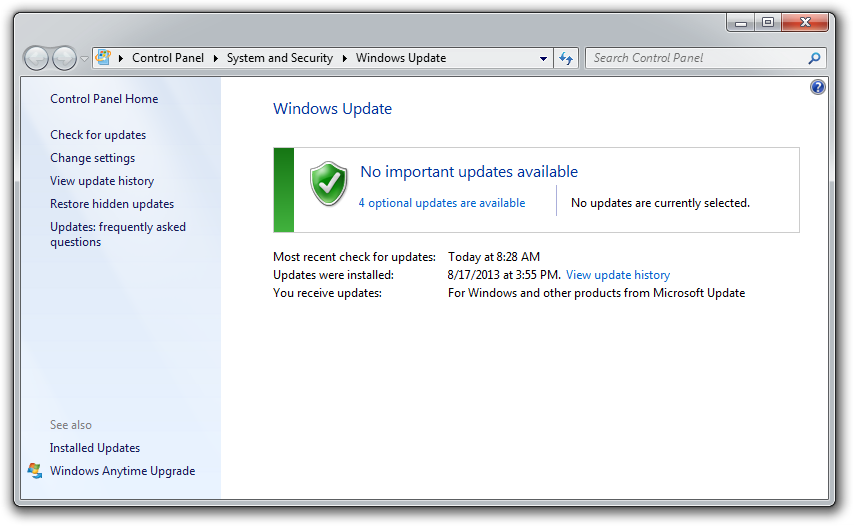
While you’re at it, make sure that your operating system is fully updated by running Windows Update. Neglecting updates could deprive you of important bug and performance fixes.
If you’re having problems with a peripheral, try switching it on and off. If that doesn’t work, try disconnecting and reconnecting the device. As a last resort, download the latest drivers and perform a full reinstall.
My computer is too slow
The first step to fixing a slow computer is to verify that your machine is the actual source of the problem. Videos that seem to buffer forever, and websites that take ages to load, may not be your computer’s fault. Geek Squad agent Derek Meister claims that many people mistakenly identify a slow system as the problem when “it’s actually not the computer, [but] their broadband connection.” See “Downloads are taking forever” below for instructions on how to use Speedtest.net to diagnose a slow connection.
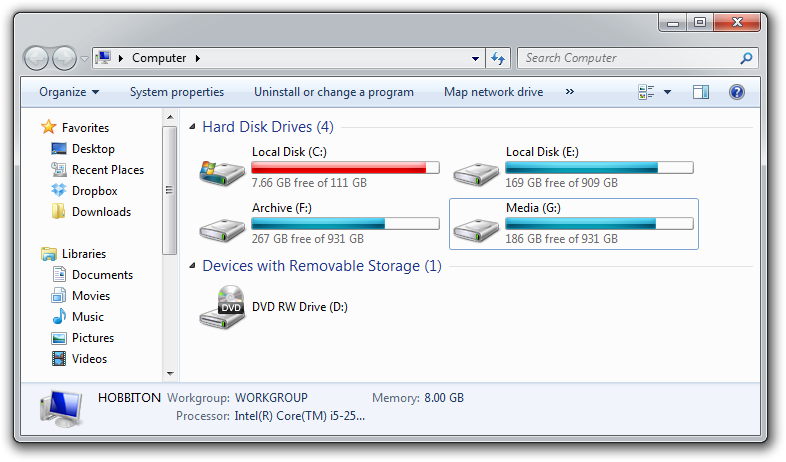
If the problem is your PC, check whether you have plenty of free space on the hard drive holding your operating system. Windows needs room to create files while your system is running. If your hard drive is maxed out, performance suffers. Now is the perfect time to clear some space.
Microsoft’s System Configuration tool is your next-best bet for tackling slow performance. Many applications launch automatically when your machine boots up, which can stretch out boot time—especially on older, slower PCs. Make a habit of trimming the startup items. Open the tool by pressing Windows-R, typing
msconfig, and pressing the Enter key.
Checking the Startup Item and Manufacturer columns is the best way to figure out which potential performance-killers you can safely disable. Avoid messing with any of the services and programs that have Microsoft Corporation listed as the manufacturer. Items such as AdobeAAMUpdater, Google Update, Pando Media Booster, Spotify, and Steam Client Bootstrapper are all fair game. Regardless, err on the side of caution: If you’re not sure what the program or service does, don’t disable it.
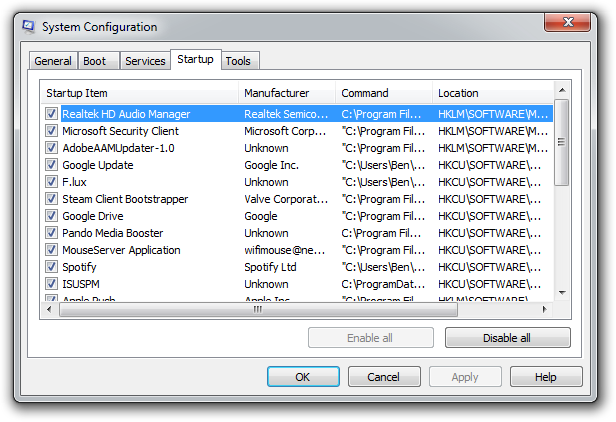
Once you’ve made all your changes, click OK and restart the computer. It should boot up quicker and feel noticeably faster.
Downloads are taking forever
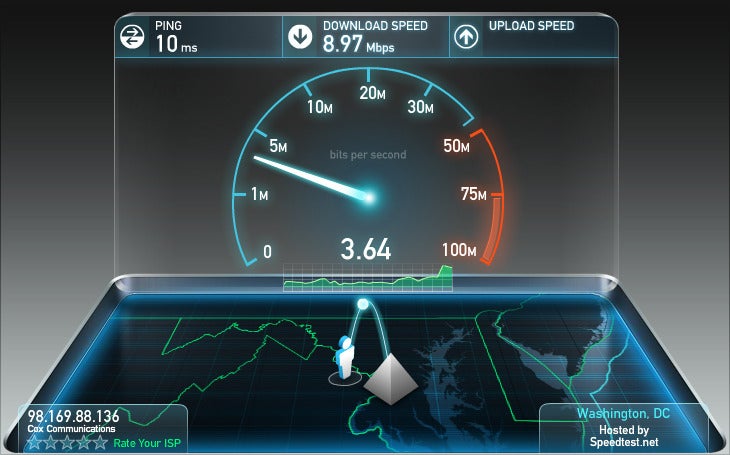
Speedtest.net is your best friend when you're having connectivity problems. Run a speed test to see what your download and upload speeds are—ideally they should be at least 50 percent of your Internet service provider’s advertised speeds, with a ping under 100 milliseconds.
If the speeds seem solid, make sure that you aren’t inadvertently downloading or uploading anything. Many torrent downloading programs run in the background and minimize into the system tray instead of the taskbar.
Check your network hardware. Updates for network cards aren’t all that common, but if your card’s manufacturer offers a newer driver, download it. Resetting your router and modem can help with connection problems, too. Most routers and modems have reset buttons, but pulling the power cable for a second or two can do the same thing. Don’t cut the power for much longer, or the hardware may reset itself to factory defaults.
Still having problems? Call your ISP, which can tell you whether the problem is on your end. As a last-ditch measure, the ISP could reset the master connection to your home.
My machine keeps restarting
Hardware problems are hard to diagnose and solve. First, confirm that you aren’t just getting the latest wave of Windows updates, which can automatically restart your computer during installation. Then work on updating all of your critical system drivers. Your graphics card, motherboard, and network card drivers are crucial.
“Sometimes it can be viruses, sometimes it can be adware, sometimes it can be overheating, and sometimes it can be something as simple as making sure your video card is updated,” Geek Squad’s Meister says.
Is your computer making weird noises? If you’re lucky all you’ll need to do is give the machine a thorough cleaning. Modern computers have safeguards that shut down the system if a component is overheating, which can be the cause of frequent restarts when you’re running resource-intensive programs or video games.
Pop-up ads are appearing on my desktop
If you’re not running your Web browser and are still getting pop-up ads on your desktop, you’ve most likely installed adware—a program that displays unwanted ads. Although benevolent adware exists, most of the time adware is up to no good. Getting rid of it isn't easy. “There’s a ton of little system-utility tools out there that promise to clean up everything, with names like PC Speed-up, PC Speed Pro, PC Speedifier,” Geek Squad’s Meister says. “A lot of times those programs are not going to do much. Some programs will work, others are snake oil.”
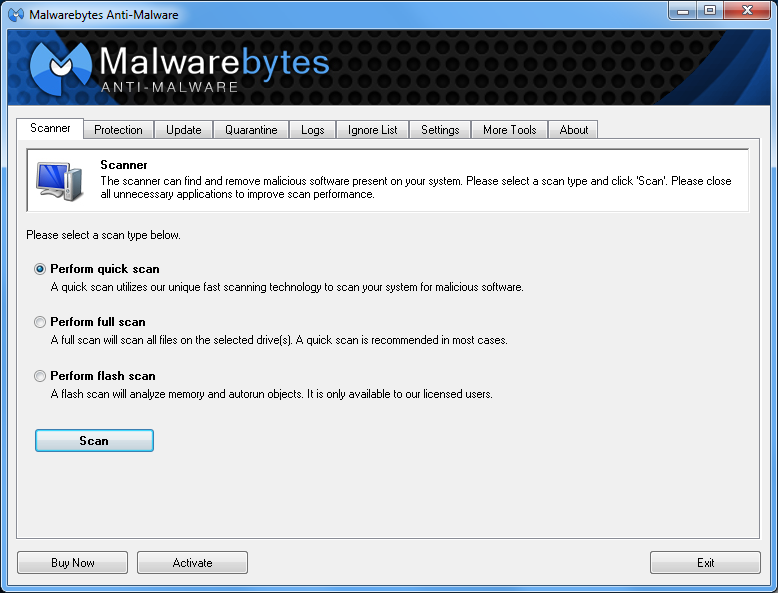
Running a full scan with credible antivirus software is your first step. If that program doesn’t find and remove the adware, turn to Malwarebytes Anti-Malware Free, a great utility for removing all types of malware. Just make sure to disable your standard antivirus software before running it.
“Multiple antivirus programs working at the same time will often result in problems,” Falcon Northwest’s Petrie says. “You only want one active, real-time antivirus scanner installed, but it doesn’t hurt to run an additional ‘on demand’ virus or malware scanner.”
Searching online for the name of the advertised product can sometimes yield solutions from fellow victims. If all else fails, there’s always the nuclear option: a complete system reinstall. It might take a long time, but it’s the only surefire way to remove adware or spyware. Remember to back up all your personal files.
Google doesn’t look right
Browser hijackers are a particularly nasty breed of malware. Such programs take over your Web browser and can stealthily redirect your Google searches and other queries to fake pages meant to steal your personal information or to further infect your system.
Running a real-time antivirus utility is the best way to stay safe. If your browser has already been hijacked, uninstall the browser and use your antivirus program in conjunction with Malwarebytes to remove the intruder.
My Wi-Fi keeps disconnecting
Spotty wireless connections can be a puzzler. Is it your computer? Your router? Your ISP? Try a few things before calling your Internet service provider.
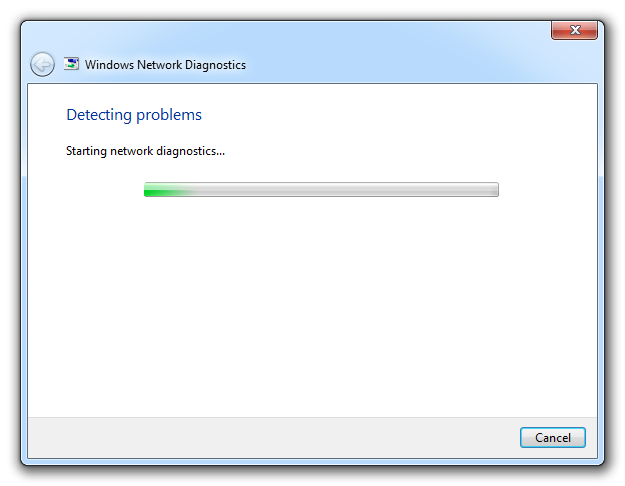
Confirm that your computer is within range of your wireless router. Weak signals mean weak connections. Next, make sure your PC’s wireless card has the latest drivers. Try letting Windows troubleshoot for you by right-clicking the Wi-Fi icon in the taskbar and selecting Troubleshoot problems.
I keep seeing ‘There is a problem with this website’s security certificate’
Sometimes the biggest problems have the easiest fixes. According to support technicians, the lion’s share of issues are due to an incorrect system clock.
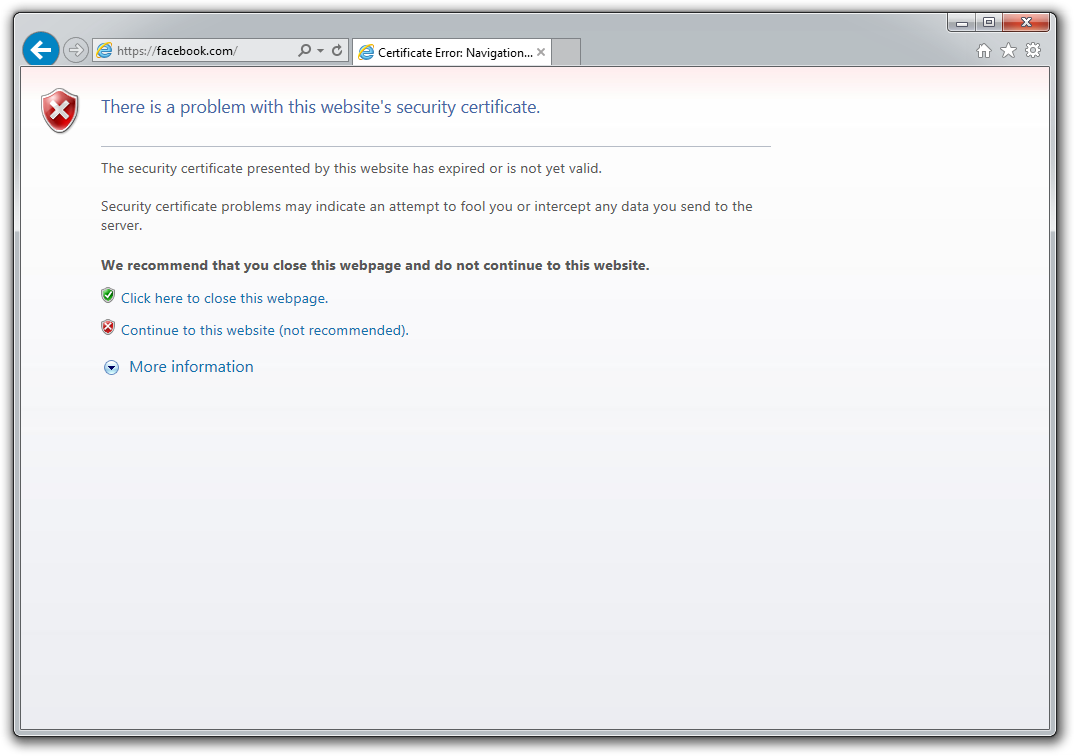
Website security certificates sync up with your computer’s clock. Old computers in particular run the risk of having a dead CMOS battery—the watch battery in your computer that keeps its system clock ticking. Click the clock in the system tray and select Change date and time settings to correct any issues.
My printer won’t print
Let’s assume that your printer’s drivers are up-to-date, and that it has enough paper and ink or toner to print. Try turning the printer off and on. Unplug the printer and plug it back in. Check your printer’s print queue by looking for the printer icon in the system tray and double-clicking it. The print queue shows you the status of each job as well as the general status of your printer.
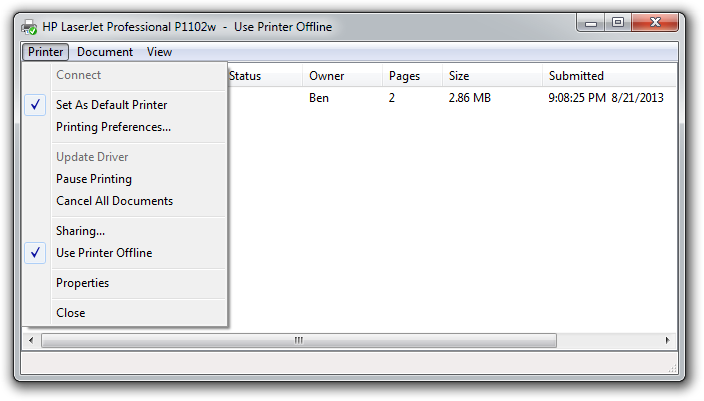
Ensure that ‘Use Printer Offline’ isn’t checked. Sometimes, printing while your printer is turned off can cause Windows to set your printer to work offline, and that can stall jobs sent later.
I can’t open email attachments
If you have ever encountered an attachment that you couldn’t open, it was probably because you didn’t have the software necessary to view the file.
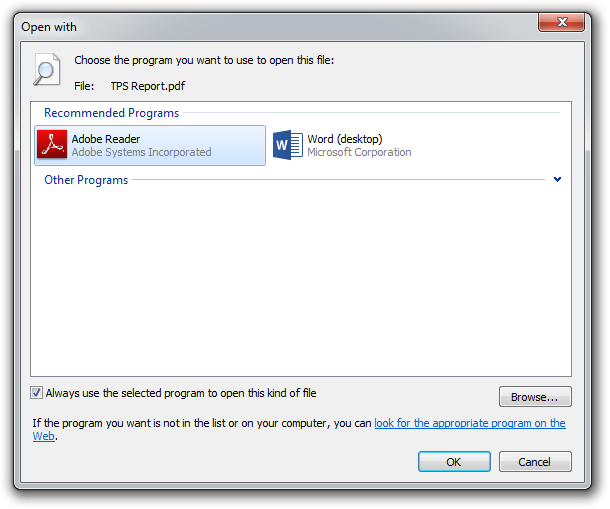
The usual suspect is the .pdf file, for which you can download a free PDF reader. If your problem involves a different file format, a quick search on the attachment’s file extension (the three letters after the period in the filename) should tell you what type of program you need. If the attachment lacks a file extension (which might happen if it was renamed), adding it back should set things right.
My favorite program isn’t working on my new PC
Before you call tech support, make sure that the software you’re trying to run is compatible with your operating system. Older software might not function on Windows 8, and an app created for Mac OS X definitely won’t run on your Windows PC. A 32-bit program might run on your 64-bit operating system, but it doesn’t work the other way around.
If an online game balks, you might be missing the required plug-ins—Java and Flash are the usual culprits. Most browsers will alert you to install these items if necessary.
When to throw in the towel
Falcon Northwest’s Petrie recommends connecting with tech support for “any problems that you aren’t comfortable addressing personally.” When in doubt, it’s better to steer clear of voiding a warranty or potentially damaging your system. “Being aware of your own skill set and limitations is important,” says Petrie, because “it’s often easy to make matters worse.” If you think the problem is too complicated, call up a more knowledgeable friend, or bite the bullet and work with a professional tech support service.


![[IMG]](https://lh3.googleusercontent.com/blogger_img_proxy/AEn0k_u3KAje3ZuKXSKbVMwh386pByBnubWq1BpeU_64o7EjHUFNwOaED4RgG59C3OYmytRpjhhaNzLiEEAZxDZ_L0XsCren88B879Z2Tj_G7xOCLqOb2Vbn4ZtzhqCFkzg2Np17XbURi2TlqPvYbl4JVs98CEH8=s0-d)
![[IMG]](https://lh3.googleusercontent.com/blogger_img_proxy/AEn0k_sP3pVJMMdNvQZlfvUktfoaxqiMEQyJu_NmFdWhuETYgMwuD3sZJN6X6Xtxc3DMyO62ww1WF4LmcWXJHk0-KzdmIrAmI8eMuHaFxEMZOMW6-hdWAgWhN386fkNLv7bYJkMhiRaPCq2KkePuWEVvKWNV5vLUOA=s0-d)
![[IMG]](https://lh3.googleusercontent.com/blogger_img_proxy/AEn0k_sadIONZfHdk5PutJAiIYrfyJ11XaYaP4XVwyjervMad8hvv6-_njYzvL1UZkAJWVj5ETDQqm3WeF1igCLOcz923RZXX8Vq6VNSUpsRip_xRaDV-1xtoVSGMopccg6BdUQJZK8n-zBFlQ611NkC53bGEw0Mlw=s0-d)
![[IMG]](https://lh3.googleusercontent.com/blogger_img_proxy/AEn0k_skC_VmA3ru9K4EyvQHIDjet9pv2gquJ0unJU-lMNCX-CN7xPck8wQnRuarud5PLnIr8vLfOCPfP79zbpyHLsDuiWFEQhpeZu5gsCt_NueL6BZ8P5f7TXtHSOBxLJQQIon6ETJXMwV9BpdvQqGAXiHMucbG=s0-d)
![[IMG]](https://lh3.googleusercontent.com/blogger_img_proxy/AEn0k_uvAm6h5zuHhSnQtNMPc-jkATdtnye3zshPXAmqx-_jLebPwSeSbIeOwV6It6bqsw_B_YWneDlyqvmWT-jiUo8_8dkAhSb_ohh2tHdW4AH5Fs0_GF3uRNB0D7TTEq_Hfr6OEcqLmS8XH_iU8wRS_ig6Czs4Ew=s0-d)
![[IMG]](https://lh3.googleusercontent.com/blogger_img_proxy/AEn0k_u8nl0u3-0-vLjSexLsD6LFL6OcF4PiDuTVQfc6WCtPZm17eEnx4UNTdIAEsSK2wk_XMYBf-MRiCkskws9W1mEtTfhbnN8LirJcWf7OCYK7vUGHETDPodj2FBW3LAeccGXlvYwL-8YNlEC6oo_XybrWlskn=s0-d)
![[IMG]](https://lh3.googleusercontent.com/blogger_img_proxy/AEn0k_vBLUkB-ftfuOlTonBl-fOwOh3grc0vqgbJmeiIkWZFQ1VH__VLUBP24EwNlcsvS5EZrz0GXSehI6IyzzGuMXtBm_OyJaAr0tlJvsJNJCnIAgTWewsiv7GEghIMxndTlksLQD9_js1Sw4fyL5Q-YUNSCsWY=s0-d)
![[IMG]](https://lh3.googleusercontent.com/blogger_img_proxy/AEn0k_sOfVoCij1aVnsG2O0GN24jlJlMwOGK3LvTtRth7_30UznJDMImjOJpMKhgyxbWg_swFwKSlWA6N5yOnxyQ9BkovwOvRnXRo9UAfspvqgWp75m_2CY6DDUBpa6p1BL6vUYGrqWrrI4peuTUGOpj1DeNCiaEeg=s0-d)
![[IMG]](https://lh3.googleusercontent.com/blogger_img_proxy/AEn0k_s4gOnHYvpAh3h93IVob5AbMUwvc8QfKPtnILJ7xjsX5XS3pqY2kpxGkXjvL1eJAvK_goc-a21MdcSdeTuJ1fGmoTx8q8DAtFd7HxoiDvSzinXlyElA24GXPLPSRlYNvu164u9kG07F8RSwkuRkCwSQbt0Rng=s0-d)
![[IMG]](https://lh3.googleusercontent.com/blogger_img_proxy/AEn0k_uHc2zw59n27sF4Xq_mNrCyyuw6V-zrl2NZcO9hyp78ySjoHAvjRPJqB5mRZMsbD6MQ4RoVF8x2KfXqymjWKncH1s4HI7cB9Nw2qyCGGXZyUnDUdu6MLsDBCVFrwSAHhDHoc3esVc1fDyADj3MJ0HpxZyqb1w0=s0-d)
![[IMG]](https://lh3.googleusercontent.com/blogger_img_proxy/AEn0k_t9GoYZPcOAAHMGRl0Os8Pu6s1aQfegQvYr50rcK7bCexjqhnr1udo-sYOwttmsPv8-w-HkvsZ5nCXOkkzf74qLzQDETijaUM8Iw56hsOhy4YrIQYINSmEKjx-5HBSoLe-N2CgYVxbHIpHJ5V1f8XX5kiyS9g=s0-d)
![[IMG]](https://lh3.googleusercontent.com/blogger_img_proxy/AEn0k_tXo6mTya5VfZRicrue6ATbQuwKVxFftlt9F6fxRPXrYz8CoKXY3UNSHtLMRW272jqmZasV7vlZoFIiNCUhV4CpcfuQtmSHbFsl3wSQPSiYpqFph2UcXmmUNLVoBp1PdJPZXa19CDcQRnwPGYsDWmGzl4xXHw=s0-d)
![[IMG]](https://lh3.googleusercontent.com/blogger_img_proxy/AEn0k_tZIfrJRG79ZseaMkBdtThaU7cAsiwrIf87UHc8inhV3K8F3mC0NN4GeQgWwWxdxPvBmNSdVexJ_yCWJwCSTPU4ACUXjdOGvoFL1WUpFgEwZ9ATgV3hNBaqmygs5JbEwMHXHh_6PBVsbK9Vx3MyAaEJF_I3TQ=s0-d)
![[IMG]](https://lh3.googleusercontent.com/blogger_img_proxy/AEn0k_tparqtEBIb7OA6qOAMFhGOWfFZsr6BiZYfaaa3rTJubrxRnRcHiNDQBHFAq6SKlGCagh48IwkhnnEZC6TKQN04aNkTceuhXV0UP6k5DcQqGAmqw6_ROXiEaD4aoTVLpwdeyxDJdDqr1--qgHty1dWdEECwQQ=s0-d)
![[IMG]](https://lh3.googleusercontent.com/blogger_img_proxy/AEn0k_vbHr6N4V_PwJALHEz7T6J1ldqI6lbPcFb-OMLfMmYzCvNQw8k_VpPthsUDHMJpl88VN-Pi_-962C7fLrGPWS9Ing3U-5d5V2mCGsMRkQJL7kypa_-W_DX3Spg5WvNdBYgydy6daFXOVkADl7--EChOpoAUNkk=s0-d)
![[IMG]](https://lh3.googleusercontent.com/blogger_img_proxy/AEn0k_vmwwc6RNsTppKgFiTLLDAuCjtxD9sb9DydfTo98kOIZFKQVtm7ItNX387-cjjgoVXU_rnbmC1sqveZHPoDpxx7_KuwYRAGgdcZhdxDV53keYoZ24Y7wTK8kWslUyxlHgb3QJOUA1hgIh2e0fsqFadZ7x9EO-4=s0-d)